Connect USB Drive to Phone: Android & iPhone Guide

Max Global: If your phone will not recognize a flash drive when you need it most, you are not alone. The fix is usually straightforward once you match the correct adapter to your phone’s port, confirm the drive is in a format your phone can read, and handle power the right way.
MAX Global brings you a step-by-step troubleshooting guide that helps you connect USB drive to phone based on the kind of device you have.

Identify your phone and port first
Before you plug anything in, confirm two details:
- Are you using Android or iPhone?
- What port does your phone have: USB-C, Micro-USB, or Lightning?
Many newer Android phones use USB-C, while older models may use Micro-USB. iPhones use either USB-C (newer models) or Lightning (many older models). Knowing your port prevents the most common issue: using an adapter that fits physically but is not the right type for the connection.
Why a USB drive may not show up
A phone needs to operate in USB “host” mode for external storage. In host mode, the phone is responsible for powering the USB connection and recognizing the device. If the drive draws more power than the phone can provide, or if the file system is not supported, the drive may not appear—or it may disconnect during transfers.
How to connect USB drive to phone on Android
If you have an Android phone, you will typically use a USB OTG (On-The-Go) adapter or cable so the phone can act as the USB host.
Step 1: Use the correct OTG adapter
- Android with USB-C: use a USB-C OTG adapter (often USB-C to USB-A) for standard USB flash drives.
- Android with Micro-USB: use a Micro-USB OTG adapter for older phones.
- If your flash drive already has a USB-C connector, you may be able to plug it in directly without an adapter.
Step 2: Connect the drive, then open Files by Google
After you plug in the drive (or a USB card reader), open Files by Google:
- Look for the system notification: “USB available.”
- Tap the notification, select the connected device, then tap Allow when prompted.
- In Files by Google, go to Storage devices and tap your USB device to browse content.
Step 3: Transfer files safely
In Files by Google, copy or move files between your phone storage and the USB drive. When you finish, wait until transfers complete before disconnecting to reduce the risk of file corruption.

Android troubleshooting: USB drive “not detected”
If you still cannot connect USB drive to phone on Android, check these in order:
- No “USB available” notification
Remove the drive, reconnect it, and check again. If possible, test with another flash drive to confirm whether the issue is the drive or the adapter/phone. - The drive needs more power
Small flash drives usually work, but some external hard drives and certain SSD enclosures can draw more power than a phone can deliver. In that case, you may need a powered USB hub (or a drive with its own power source). - Android version limitation (important)
Files by Google notes that USB storage access is available on Android 7.0 (Nougat) and higher. On older Android versions, the drive may not appear the same way in Files.
How to connect USB drive to phone on iPhone
On iPhone, you can use the Files app to access external storage, but the adapter and the drive format matter more than most people expect.
Step 1: Choose the correct connection for your iPhone
- iPhone with Lightning: use a compatible Lightning-to-USB adapter (Apple lists Lightning to USB Camera Adapter and Lightning to USB 3 Camera Adapter options).
- iPhone with USB-C: connect a USB-C drive directly when possible, or use a USB-C reader/hub if needed.
Step 2: Open Files and find the drive
After you connect the drive:
- Open Files, tap Browse, then look under Locations for the connected device.
- If Locations is not visible, tap Browse again.
Step 3: Confirm the two iPhone requirements (common blockers)
If you cannot connect USB drive to phone on iPhone, Apple documents two frequent causes:
- Single partition: the external storage device must have only one data partition.
- Supported formats: APFS (including encrypted), macOS Extended (HFS+), exFAT, FAT32, or FAT.

Power note for iPhone
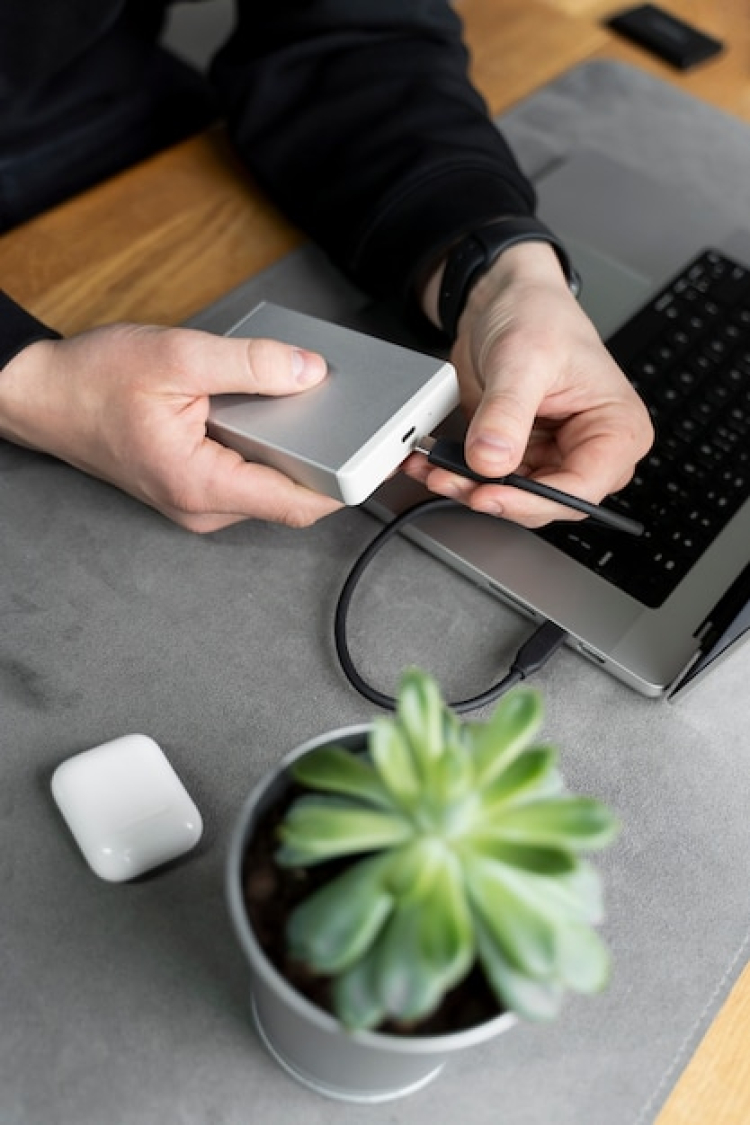
Apple also notes that external hard drives often require external power. If your drive does not power on or keeps disconnecting:
- On USB-C iPhone models: use a powered USB hub.
- On Lightning iPhone models: use the Lightning to USB 3 Camera Adapter connected to a USB power adapter.
A quick fix-by-device checklist
Use this when you need to connect USB drive to phone quickly:
- Android (USB-C): OTG adapter + Files by Google + “USB available” + Allow.
- Android (Micro-USB): Micro-USB OTG adapter + Files by Google + “USB available” + Allow.
- iPhone (USB-C): connect directly if the drive is USB-C, then confirm format and single partition in Files if it will not mount.
- iPhone (Lightning): use a compatible adapter, and add external power for power-hungry drives.
When you set up the right adapter and a compatible format, it becomes much easier to connect USB drive to phone for photo transfers, document handoffs, and quick backups—without needing a laptop.